Blog · Apple Maps
Apple Maps has no speedometer.
Correct — Apple Maps has no speedometer, even in iOS 27. It shows the posted speed limit while you navigate, and never your own speed. Apple has never said why, but the gap is easy to fill on the phone: Google Maps or a plain GPS speedometer in the browser. On the car screen, Waze, Google Maps or an iOS 26 widget do the same job.
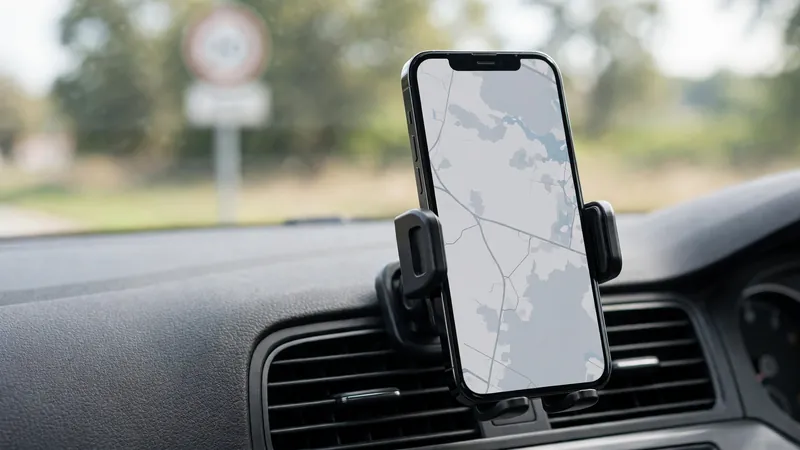
What Apple Maps does show
Apple Maps is not empty-handed. While you navigate it shows the posted speed limit as a small road sign on the map, in the places where Apple has limit data. Turn it on in Settings → Apps → Maps → Driving → Speed Limit. The sign only appears while you are in active turn-by-turn navigation — not when you are just looking at the map.
It also shows speed camera alerts automatically in supported regions — currently the United States, United Kingdom and Ireland — with no switch to turn them on. And Apple Maps will sometimes ask you to confirm the limit: a "Speed Check — Report Speed Limit" prompt appears when you approach an area where Apple needs user verification, and you can tap to confirm the posted limit is accurate. The limit data comes from official sources and from user reports, the same mix its rivals use.
What it never shows is a number for your own speed. There is no toggle, no hidden setting and no widget inside Apple Maps that adds one. If you are waiting for Apple to add a speedometer to Maps, you will be waiting a while — the feature has been missing for a decade, through every iOS version, and Apple has never announced plans to add it.
Why Apple leaves it out
Apple has never given a reason, so anything here is an educated reading of how Apple builds driving products — not a quote. The pattern is consistent: Apple keeps driving interfaces deliberately simple and glanceable, and it treats the car's own instruments as the car's job. In Apple's view, Maps is a directions app. Your speed belongs on the dashboard, which every car already has. The speed limit sign is the part that helps you obey the law, so that is the part Apple shows.
There is a safety argument in the same direction. A live speed number invites a glance every few seconds; a limit sign is a single piece of information you check once. Apple restricts CarPlay the same way — small app categories, large touch targets, no scrolling feeds — because the screen in a moving car should demand as little attention as possible. Whether you agree with that trade-off or not, it explains why the most requested Maps feature has never shipped.
The same caution runs through CarPlay itself. Apple restricts CarPlay to a small set of app categories, enforces large touch targets and voice control, and keeps detailed stats — trip details, driving scores, leaderboards — on the phone to be reviewed after parking, not during the drive. A speedometer is exactly the kind of glanceable number that fits that philosophy, which is what makes its absence so strange. But Apple has drawn the line at the limit sign, and nothing in a decade of iOS updates suggests the line is moving.
Rivals chose differently. Waze shows your live GPS speed and the limit together, turning red when you pass the limit. Google Maps has a speedometer on both Android and iPhone. Both decided the driver wants the comparison — "this is the limit, this is your speed" — on one screen. Apple decided the driver already has a speedometer built into the car.
Two ways to see your speed on the phone
Pick by how you drive: if you live in a nav app, Google Maps gives you speed and limit on one screen; if you just want to check the dashboard, the browser does it in one tap. Both are free, and neither needs a new car.
- Google Maps. The speedometer came to Android in 2019 and to iPhone in July 2024. On your iPhone, open Google Maps, tap your profile picture, then Settings → Navigation → Map display → Show speedometer. It shows your GPS speed and the posted limit while you navigate, and it shows on the CarPlay screen too. This is the simplest fix for most iPhone users.
- A GPS speedometer in the browser. No install, no account, no app to open. Our live GPS speedometer runs in any phone browser and shows your speed in mph, km/h, knots or m/s, with the accuracy radius shown live. Your location never leaves the device.
On the car screen, the options are different: Waze and Google Maps both show your speed on CarPlay, an iOS 26 widget can show it full-time, and CarPlay Ultra puts an Apple-designed speedometer in the instrument cluster on the few cars that support it. Those are car-screen methods, so they live in our CarPlay guide rather than here.
Apple Maps vs Google Maps vs Waze: the speed scoreboard
| App | Shows your speed? | Shows the limit? | On CarPlay? |
|---|---|---|---|
| Apple Maps | No | Yes, while navigating | Limit sign only |
| Google Maps | Yes (iPhone since July 2024) | Yes | Yes — speed + limit, while navigating |
| Waze | Yes | Yes | Yes — speed + limit on the map |
The table makes the gap obvious. On the phone, only Apple Maps refuses to show your speed. On CarPlay, both Google Maps and Waze put your speed on the car screen — Google Maps only while you navigate, Waze whenever the app is open, with a warning when the limit is about to drop. If your daily drive is Apple Maps and you want a speed number without changing apps, the iOS 26 widget is the answer: it sits beside CarPlay rather than inside Maps, and it works whichever nav app you are using. The full car-screen methods are in our CarPlay guide.
Why the limit sign alone is not enough
A limit sign tells you the number on the road, but it does not tell you your speed — and your dashboard is not a neutral witness either. In the UK and the EU, UN Regulation 39 says a speedometer must never read below your true speed, and may read up to 10% plus 4 km/h high at type approval. So at a true speed equal to the limit, this is the most your dashboard is allowed to show:
| Posted limit | True speed | Most the dashboard may show |
|---|---|---|
| 20 mph | 20 mph | About 24 mph |
| 30 mph | 30 mph | About 35 mph |
| 40 mph | 40 mph | About 46 mph |
| 50 mph | 50 mph | About 57 mph |
| 60 mph | 60 mph | About 68 mph |
| 70 mph | 70 mph | About 79 mph |
The maths is the limit times 1.10, plus 4 km/h (about 2.5 mph): at 30 mph, 33 plus 2.5 is about 35. Most cars sit well inside that ceiling — a few percent high, not the full allowance — but the point stands: the limit sign plus the dashboard can still leave you guessing by several mph. A GPS speed closes that gap, because it measures your true speed instead of the dashboard's padded version. The US has no equivalent federal accuracy standard for passenger-car speedometers, so the same caution applies there without a legal ceiling behind it.
Speed cameras: the one alert Apple Maps does give you
For all its silence on your speed, Apple Maps is chatty about speed cameras. Camera alerts are automatic in supported regions — currently the United States, United Kingdom and Ireland — with no switch to turn them on. When you approach a fixed speed camera or a red-light camera, Maps shows it on the navigation screen so you can check your speed before you reach it.
The irony is hard to miss: the app that will not show you your speed will warn you about the camera that measures it. But the combination is useful in practice. The camera alert tells you where the enforcement is; the limit sign tells you the number; and your dashboard — or a GPS speedometer — tells you your speed. Together they cover the job that a single speedometer would do, just spread across three places instead of one.
Is the limit Apple Maps shows even right?
Usually — but a map is a copy of the world, and copies go out of date. A limit can change after roadworks, a new housing estate can appear, or a temporary limit can be missed. Apple asks drivers to confirm limits for exactly this reason. The rule is the same for every nav app: the posted sign on the road is the law, and the number on the screen is a hint. If they disagree, the sign wins — and if you want to know your own speed against that sign, use one of the four options above, or check your dashboard against GPS with our car speed test.
FAQ
Questions, answered.
01 Does Apple Maps show your speed? +
No. Apple Maps does not have a speedometer and does not display your actual speed — it displays the speed limit for the road you are on, when that data is available. You only see the limit while you are navigating. There is no setting that adds a live speed readout to Apple Maps, on the phone or through CarPlay.
02 How do I turn on the speed limit in Apple Maps? +
Go to Settings, then Apps, then Maps, then Driving, and turn on Speed Limit. The posted limit then appears on screen while you navigate. If the limit does not show, the road may not have limit data in Apple's maps, or you may not be in active turn-by-turn navigation — the limit sign only appears while you are being guided.
03 Does Google Maps show speed on iPhone? +
Yes. Google Maps added a speedometer on iPhone in July 2024 — it had been on Android since 2019. To turn it on, open Google Maps, tap your profile picture, then Settings, then Navigation, then Map display, and switch on Show speedometer. It shows your GPS speed and the posted limit while you navigate, and it shows on the CarPlay screen too. It is the simplest fix for an iPhone user who wants a speed number on the map.
04 Why doesn't Apple Maps have a speedometer when Waze and Google Maps do? +
Apple has never said. The likely reason is design philosophy: Apple Maps is built as a directions app, not an instrument panel, and Apple keeps driving interfaces deliberately simple and glanceable. The speed limit sign is the part that helps you obey the law; your speed is the car's own dashboard's job, in Apple's view. Rivals chose differently — Waze and Google Maps both show a live GPS speed.
05 Can I see my speed on CarPlay if Apple Maps won't show it? +
Yes — and that is a car-screen question, not an Apple Maps one. Waze and Google Maps both show your live GPS speed on the CarPlay screen, and on iOS 26 a GPS speedometer widget can show it full-time. Our CarPlay guide covers all three, plus CarPlay Ultra and OBD-II apps, so you can pick the one that fits your car.
Related tools
Get your speed another way, free.
Sources
Where the facts came from.
- Apple Support — What's new in iOS 27 (Apple's own iOS 27 list for Maps names only Flyover and Local Lists — no speedometer)
- Engadget — How to get warnings about speed cameras in Apple CarPlay (Apple Maps limit toggle, camera alerts US/UK/IE, CarPlay Ultra)
- AddCarWidgets — CarPlay Speedometer: How to Show Your Speed (iOS 26) (Apple Maps shows limit sign only; iOS 26 widgets; Waze on CarPlay)
- StudyCountry — Does iPhone Maps show speed? (no speedometer; limit only while navigating; Speed Check prompts)
- TorqueSheet — Speedometer Error Calculator (UN Regulation 39: indicated speed must never be below true speed, and may exceed it by no more than 10% plus 4 km/h; no US federal accuracy standard for passenger-car speedometers)
Last checked: 23 November 2026.