Blog · iPhone
iPhone speedometer: 4 ways to see your speed on iOS
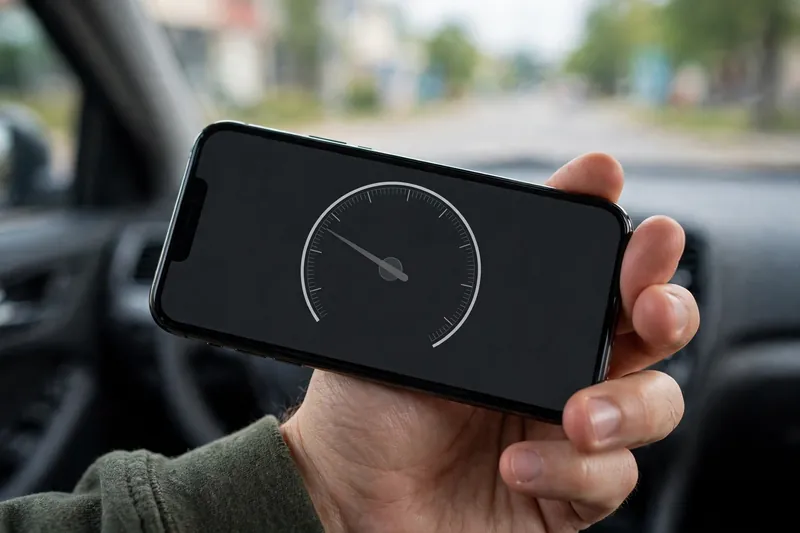
Your iPhone has no built-in speedometer app, and Apple Maps only shows the posted speed limit — not how fast you are actually going. To see a live speed on iOS you have four real options: a navigation app with a speedometer, a web speedometer in Safari, a dedicated GPS app, or the car screen with CarPlay.
Why there is no speedometer on the iPhone
The iPhone has everything a speedometer needs: a satellite receiver, motion sensors, a precise clock and a camera that films up to 240 frames per second on many models. What it does not have is a stock speedometer screen. Apple Maps can display the posted speed limit during navigation in supported areas — turn it on under Settings, then Apps, then Maps, then Driving, then Speed Limit — but it does not show your own speed. There is no toggle, no hidden setting and no CarPlay option that turns it on. The same is true on the wrist — see the Apple Watch speedometer guide for how speed works on watchOS.
That leaves four ways that actually work. They differ in what else they give you, not in the speed itself: every one of them reads the same GPS chip in your phone.
Way 1: Google Maps or Waze
Google Maps has a speedometer on iPhone since a rollout that began on 9 July 2024, about five years after Android got it. Open the app, tap your profile picture, then Settings, then Navigation, then Map display, and turn on Show speedometer. It shows your speed in the corner of the map while you are driving a route, and the speed limit appears next to it where that is supported — the indicator changes colour when you go over. Google says the reading is informational only, and your car's speedometer remains the authoritative reference.
Waze is the simpler of the two for this job: it shows your speed by default whenever the app is open and you are moving, and it can warn you when you creep over the limit. The warning and the display are in the app's settings under Speedometer. Both apps work on CarPlay, so the number can live on the car screen instead of the phone.
Way 2: a web speedometer in Safari
The quickest option, and it costs nothing. Safari can read your iPhone's GPS through the standard Geolocation API, so any browser-based speedometer shows your speed after you allow location access. Open the page, tap to start, allow location when Safari asks, and wait a few seconds outdoors for a GPS fix. Our homepage is exactly that: a live dial, a large-digit mode, a HUD mirror mode, trip history that stays on your device, and a dashboard-error calibrator — no download, no account, no ads.
If location does not work, the fix is in Settings: go to Privacy & Security, then Location Services, make sure Location Services is on, then find Safari Websites and choose While Using the App. Turn on Precise Location too — without it the reading will be rough or missing entirely, especially in a moving car.
Way 3: a dedicated GPS speedometer app
A native iPhone speedometer app is the option that behaves like an actual instrument. The readout is bigger, the trip recording is built in, and the app keeps the screen awake while you record. Before you install one, decide what job it has to do: a big number for glancing at, a HUD mode for night driving, or a recorded drive with distance, duration, top and average speed. Then check the App Store listing for the current price, the last update date, and the data-safety section — an app that has not been updated in years is a maintenance risk on a current phone, and prices change. Our best speedometer apps comparison ranks the free and paid picks by job, so start there rather than installing the first result.
The case for installing one is simple: a navigation app shows your speed as a small corner number, while a dedicated app makes the number the whole screen. It earns its place when you want a drive recorded — distance, duration, top and average speed — rather than a glance mid-navigation.
Way 4: on the car screen with CarPlay
If your car has CarPlay, you can move the readout off the phone entirely. Google Maps and Waze both show their speedometer on the car display, an iOS 26 widget can show it full-time, and CarPlay Ultra — which launched on 15 May 2025 with Aston Martin first — puts speed on the car's own instrument cluster. The phone stays in the mount and the number lives where your eyes already are. The full car-screen methods, and which one fits your car, are in our CarPlay guide. The car's own instrument cluster remains the main speed reading, and the app number is the cross-check.
Which way is fastest?
The four ways differ in speed of setup, not in the speed they show. A browser speedometer is live in under ten seconds with nothing to install. Google Maps or Waze take a minute the first time — find the setting, turn it on — and seconds after that, but only while you are navigating. A dedicated app takes a download and a permission grant, then behaves like an instrument. CarPlay takes a cable or a wireless pairing, and then the number lives on the car screen.
| Way | Setup | Live speed without navigating | Trip history |
|---|---|---|---|
| Browser speedometer (Safari) | Seconds, nothing to install | Yes | Yes, on the device |
| Google Maps | One setting, then seconds | No, navigation only | No |
| Waze | None, on by default | Yes | No |
| Dedicated GPS app | Download + permission | Yes | Yes |
| CarPlay | Cable or wireless pairing | Yes, on the car screen | Depends on the app |
For a one-off check, the browser wins: nothing to install, nothing to set up, and the number is on the screen before a download would have finished. For everyday driving with navigation, Google Maps or Waze win, because the speed sits next to the directions you are already following. For a recorded drive, a dedicated app wins. There is no single best way — there is a best way for the job you are doing right now.
Two more methods, for completeness
A stopwatch and a known distance will give you a speed with no electronics at all: speed is distance divided by time, so a car covering one mile in 60 seconds is doing 60 mph, and in 51.4 seconds it is doing 70 mph. Slow-motion video works the same way — count the frames over a known distance, divide by the frame rate, and you have the time. A car crossing a 10-metre stretch in 60 frames of 240-frames-per-second video took 60 ÷ 240 = 0.25 seconds, so its speed was 10 ÷ 0.25 = 40 metres per second — 144 km/h, or 89.5 mph. And the Health app estimates your walking speed over the long term when you carry the phone in a pocket, though it is a trend, not a live reading. GPS methods suit driving; the manual methods suit balls, bikes and runners.
Whichever way you pick, mount the phone before you drive. A speedometer you have to hold is not a speedometer — it is a distraction. And remember the number is an estimate: on a steady open road it is usually closer to your true speed than your dashboard, which is allowed to read high, but it drops out in tunnels and lags for a moment under hard braking.
FAQ
Questions, answered.
01 Does the iPhone have a built-in speedometer? +
No. iOS ships no speedometer app, and Apple Maps only shows the posted speed limit — never how fast you are actually going. To see a live speed on an iPhone you need Google Maps, Waze, a browser speedometer, or a dedicated GPS speedometer app. All four work; they differ in what else they give you.
02 How do I turn on the speedometer in Google Maps on iPhone? +
Open Google Maps, tap your profile picture, then Settings, then Navigation, then Map display, and turn on Show speedometer. It only appears while you are navigating, and the speed limit shows next to it where that is supported. Google rolled the feature out to iPhone and CarPlay starting on 9 July 2024, after Android had it since 2019.
03 Does Waze show speed on iPhone? +
Yes, by default. Waze shows your speed whenever the app is open and you are moving, and it can warn you when you go over the limit. The warning and the speed display are in the app's settings under Speedometer. It works on CarPlay too, so the number can live on the car screen instead of the phone.
04 Can I see my speed on iPhone without installing anything? +
Yes. Safari supports the standard Geolocation API, so a browser speedometer gives you a live reading with no download and no account. Open the page, allow location access, and the dial is live within seconds outdoors. Our homepage is exactly that, with a dial, a large-digit mode, a HUD mirror mode and trip history.
05 Why does my iPhone speedometer show a different speed than my car? +
Because the two measure speed differently, and your car's speedometer is set high on purpose. In countries that apply UN Regulation 39, the dashboard must never read below your true speed and may read up to 10% plus 4 km/h high at type approval, so on a steady road it is usually 2–5 mph above the GPS number. The iPhone number is usually the closer one to your true speed.
06 How do I fix location not working for a speedometer on iPhone? +
Go to Settings, then Privacy & Security, then Location Services, and make sure Location Services is on. Then find Safari Websites — or your speedometer app — and choose While Using the App, and turn on Precise Location. Without precise location the reading will be rough or missing entirely, especially in a moving car.
Related tools
See your speed, right now.
Sources
Where the facts came from.
- TripRank — iPhone Speedometer: 4 Ways to See Your Speed on iOS (no built-in speedometer app; Apple Maps limit only, Settings → Apps → Maps → Driving → Speed Limit; Google Maps: profile → Settings → Navigation → Speedometer; Waze shows speed by default; Safari web speedometer via Geolocation API)
- MacMyths — Google Maps iPhone Speedometer (iPhone speedometer rollout began 9 July 2024; Android since 2019; informational only; vehicle speedometer remains authoritative)
- Driven — How to Check Your Speed on iPhone (4 Easy Ways) (Safari web speedometer steps; Location Services → Safari Websites → While Using the App; Precise Location)
- Measuring Expert — iPhone Speed: 5 Ways to Measure How Fast You Go (stopwatch, slow-motion video up to 240 fps, Health app Walking Speed; 1 mph = 0.44704 m/s; Apple Maps shows limits, not speed)
Last checked: 22 November 2026.